
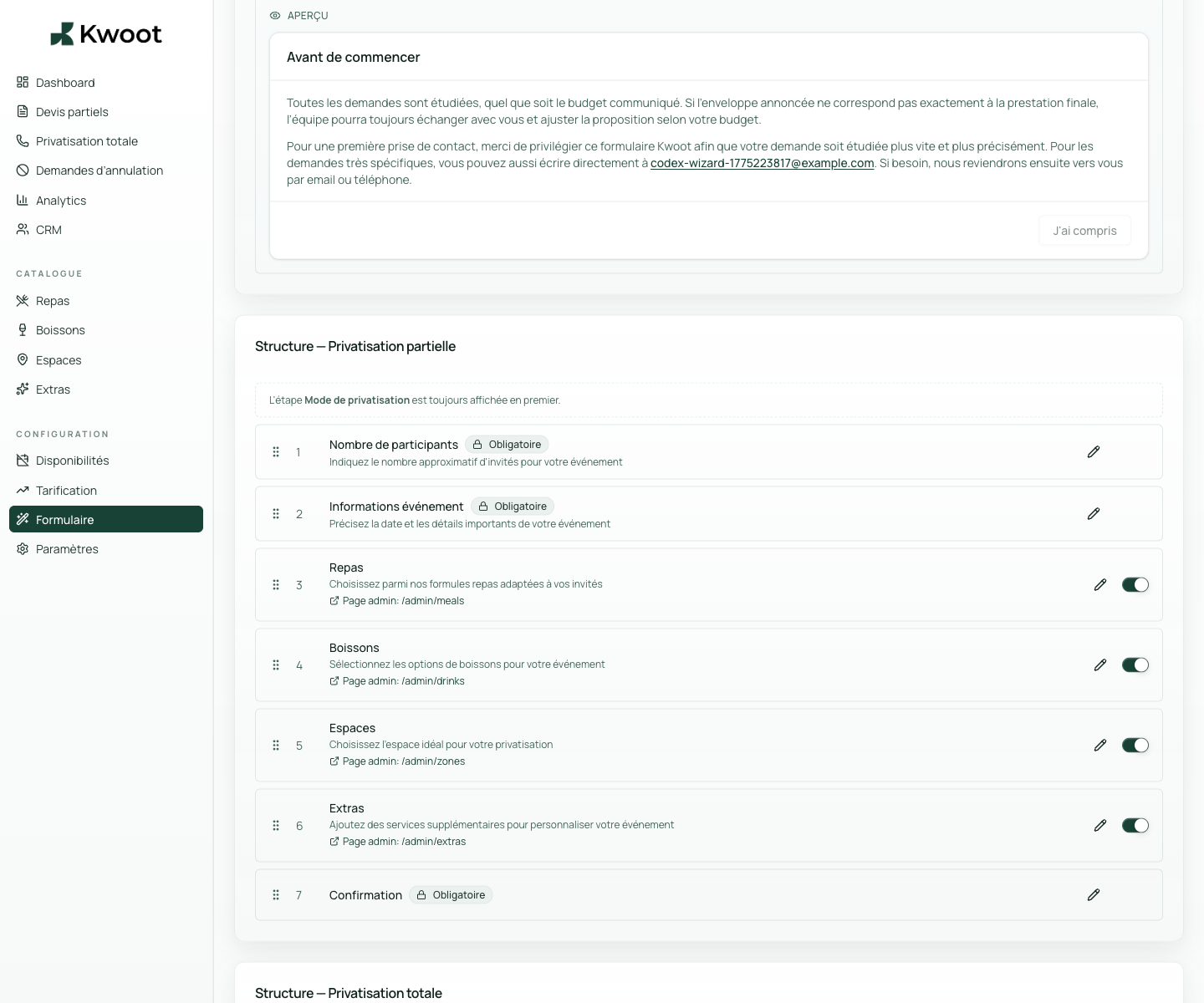
This tutorial shows you where to find the setting in the Kwoot admin, what to modify and where to control the result on the team side or on the client side.
Before you begin, keep your establishment's actual information on hand: offer, commercial rules, conditions, customer texts or visual elements depending on the setting concerned.
Configuration steps
- Open Form > Steps.
- Keep the steps that are required and disable those that don't apply to your establishment.
- Click the pencil to rename a title or subtitle.
- Save, then test the public form end-to-end.
Captures to follow
The screenshots below show the setting in the admin, then the places where the change may appear in the form, quote, customer portal or internal tracking.
Save, reload the public form or folder, and create a quick test. If the text, price or document is unclear to a customer, correct it before going live.
Continue setup
The pop-up serves to reassure the customer before they begin: response time, information requested, useful contact or clarification on private event.
Open → Following Modify field labels and placeholdersThe words on the form should speak like your team. You can adapt the wording, examples and help to avoid questions afterwards.
Open →