
This tutorial shows you where to find the setting in the Kwoot admin, what to modify and where to control the result on the team side or on the client side.
Before you begin, keep your establishment's actual information on hand: offer, commercial rules, conditions, customer texts or visual elements depending on the setting concerned.
Configuration steps
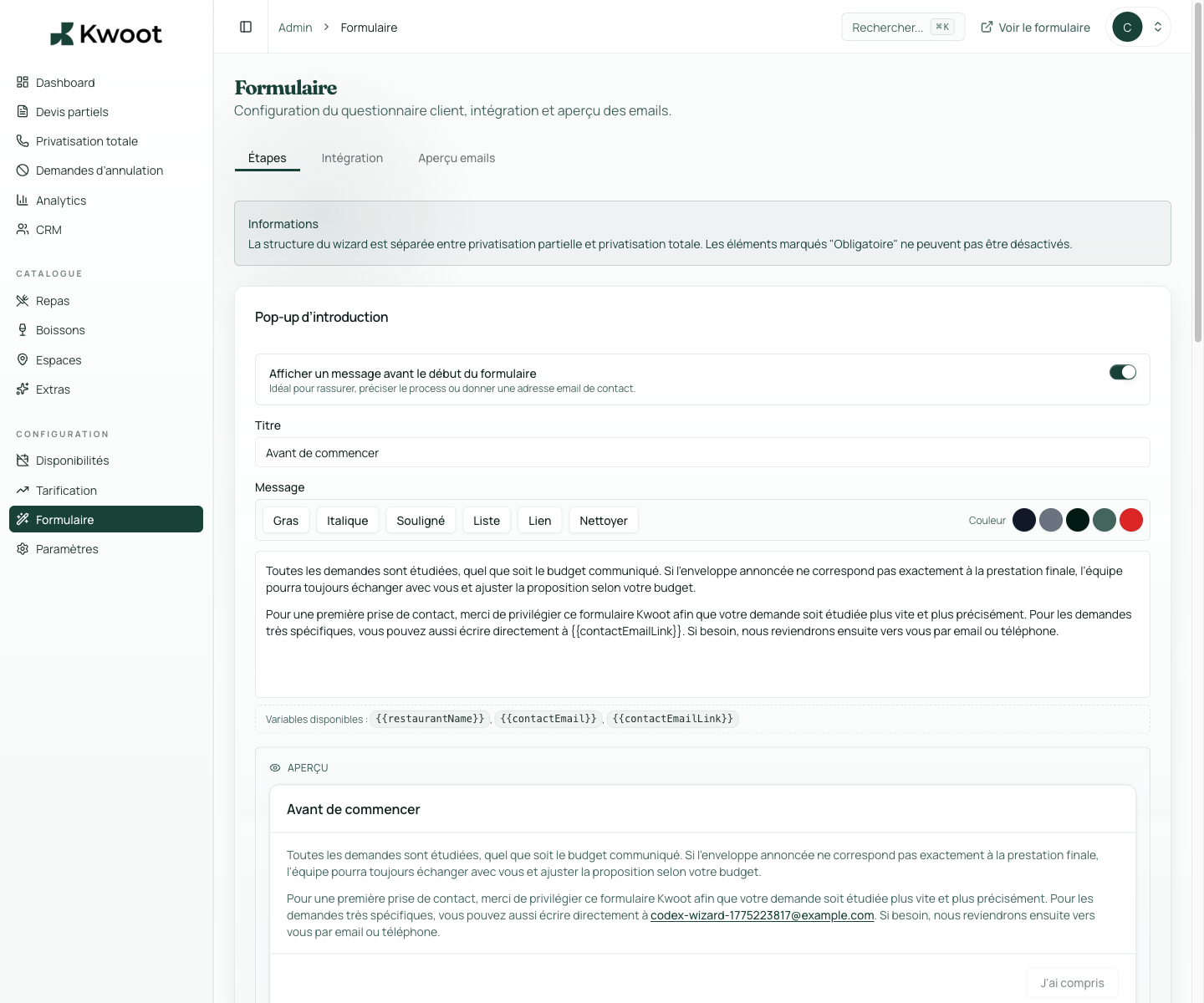
- In Form > Steps, click the pencil for a step.
- Edit the title, subtitle and available fields.
- Use concrete examples: number of guests, allergies, desired schedule.
- Reread the form on mobile to check that everything is kept short.
Captures to follow
The screenshots below show the setting in the admin, then the places where the change may appear in the form, quote, customer portal or internal tracking.
Save, reload the public form or folder, and create a quick test. If the text, price or document is unclear to a customer, correct it before going live.
Continue setup
You can keep only the steps useful to your sale: participants, event, meals, drinks, spaces, extras and confirmation.
Open → Following Customize the total private event formWhen the customer exceeds your threshold, Kwoot can directly request the essential information for a complete private event, without too long a journey.
Open →