
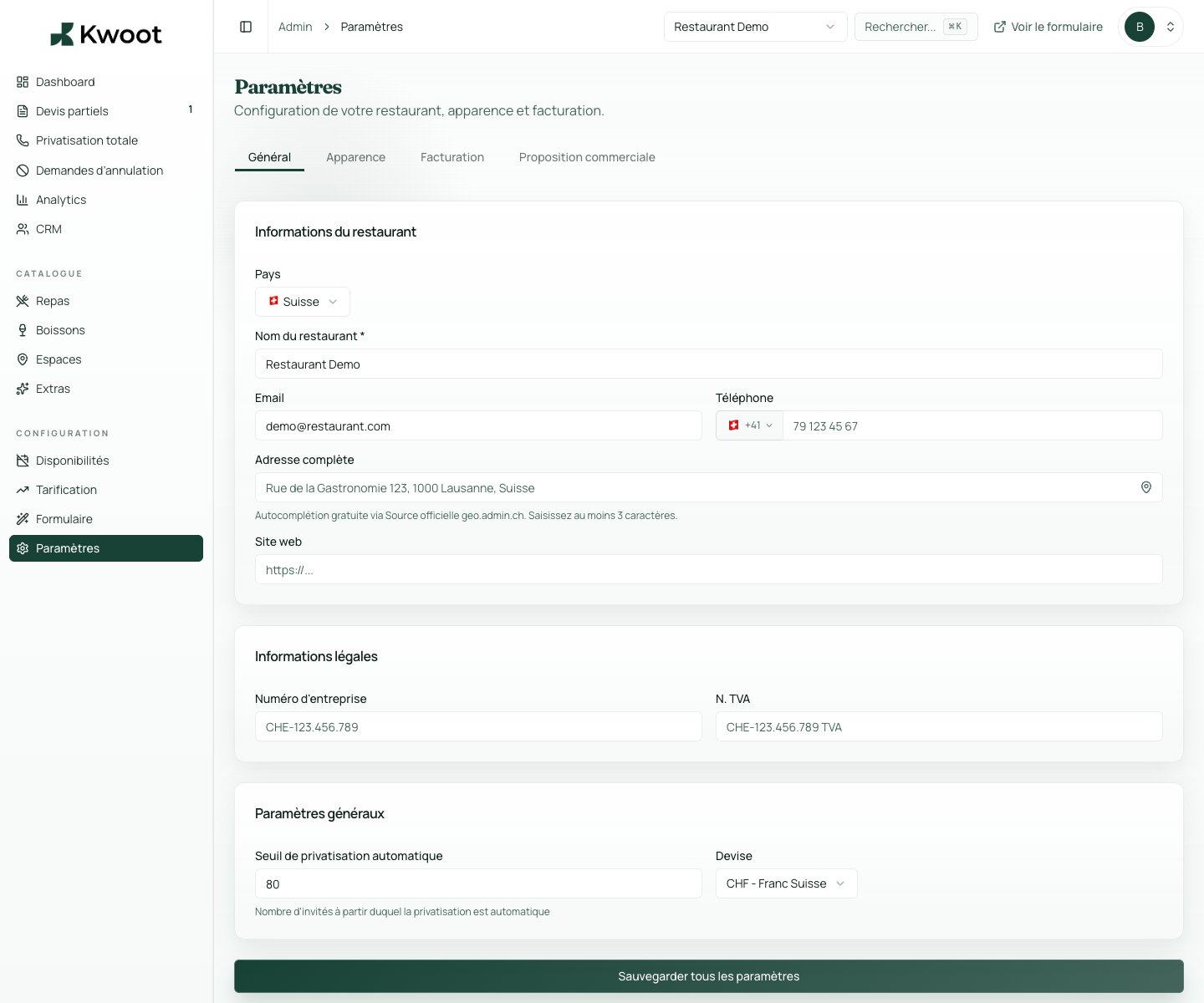
This tutorial shows you where to find the setting in the Kwoot admin, what to modify and where to control the result on the team side or on the client side.
Before you begin, keep your establishment's actual information on hand: offer, commercial rules, conditions, customer texts or visual elements depending on the setting concerned.
Configuration steps
- In Settings > Appearance, turn footer text on or off.
- Write a short message: thanks, contact, useful details.
- Add your main conditions or your link to the T&Cs.
- Choose where these elements appear: quote, invoice and emails.
Captures to follow
The screenshots below show the setting in the admin, then the places where the change may appear in the form, quote, customer portal or internal tracking.
Save, reload the public form or folder, and create a quick test. If the text, price or document is unclear to a customer, correct it before going live.
Continue setup
The logo and main color provide continuity between your site, the form, the quote, the customer portal and the emails.
Open → Following Configure bank detailsBank details are used for deposits, balances and invoices. They must be easy to read to avoid poorly referenced payments.
Open →