
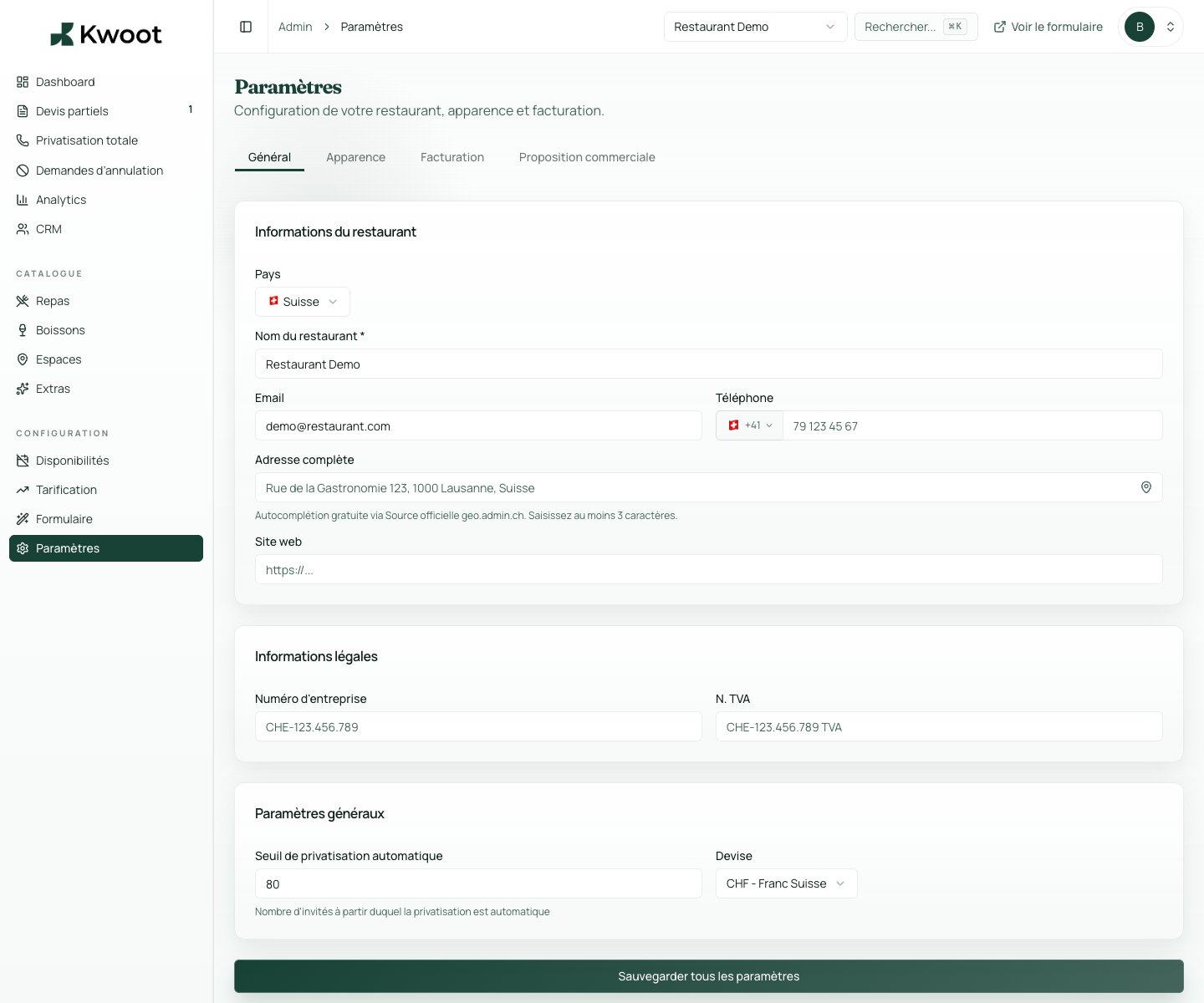
This tutorial shows you where to find the setting in the Kwoot admin, what to modify and where to control the result on the team side or on the client side.
Before you begin, keep your establishment's actual information on hand: offer, commercial rules, conditions, customer texts or visual elements depending on the setting concerned.
Configuration steps
- Open Settings > Billing.
- Enter the name of the bank, the holder, the IBAN and the BIC/SWIFT.
- Add a short instruction: reference to indicate, deadline, accounting contact.
- Check the display on the quote and in the customer portal.
Captures to follow
The screenshots below show the setting in the admin, then the places where the change may appear in the form, quote, customer portal or internal tracking.
Save, reload the public form or folder, and create a quick test. If the text, price or document is unclear to a customer, correct it before going live.
Continue setup
Footer text, conditions and their visibility avoid generic messages. They can be displayed on quotes, invoices and emails according to your needs.
Open → Following Pay deposit, balance, invoices and customer cancellationThis block defines what the customer must pay to confirm, when the balance is due and until when they can request a cancellation.
Open →