
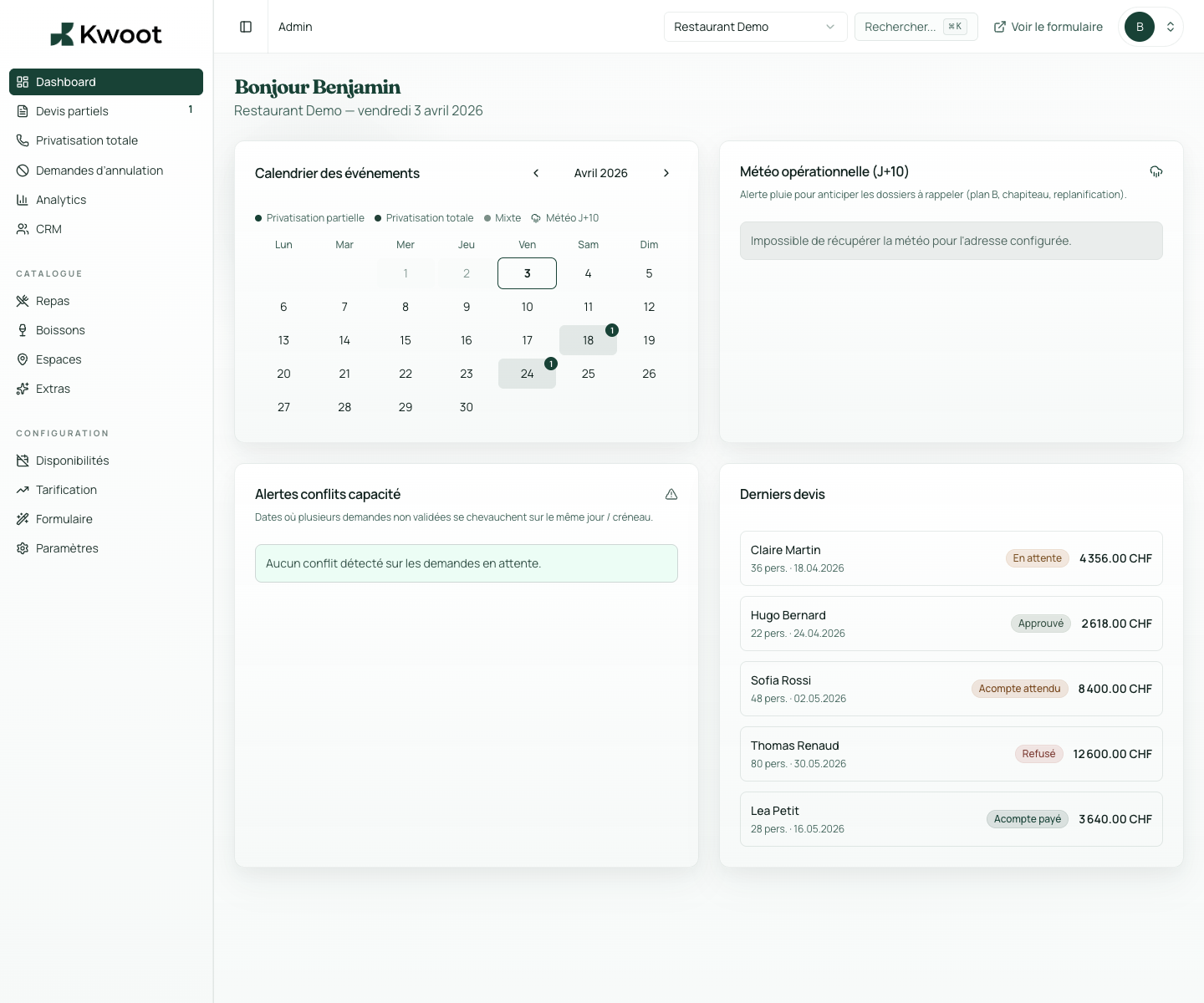
This tutorial shows you where to find the setting in the Kwoot admin, what to modify and where to control the result on the team side or on the client side.
Before you begin, keep your establishment's actual information on hand: offer, commercial rules, conditions, customer texts or visual elements depending on the setting concerned.
Configuration steps
- Open the dashboard every day to see recent requests.
- Go through the quotes to restart pending files.
- Consult the key figures to spot the periods or offers that convert.
- Then adjust menus, prices or messages according to what you observe.
Captures to follow
The screenshots below show the setting in the admin, then the places where the change may appear in the form, quote, customer portal or internal tracking.
Check before moving on to the next setting
Save, reload the public form or folder, and create a quick test. If the text, price or document is unclear to a customer, correct it before going live.