
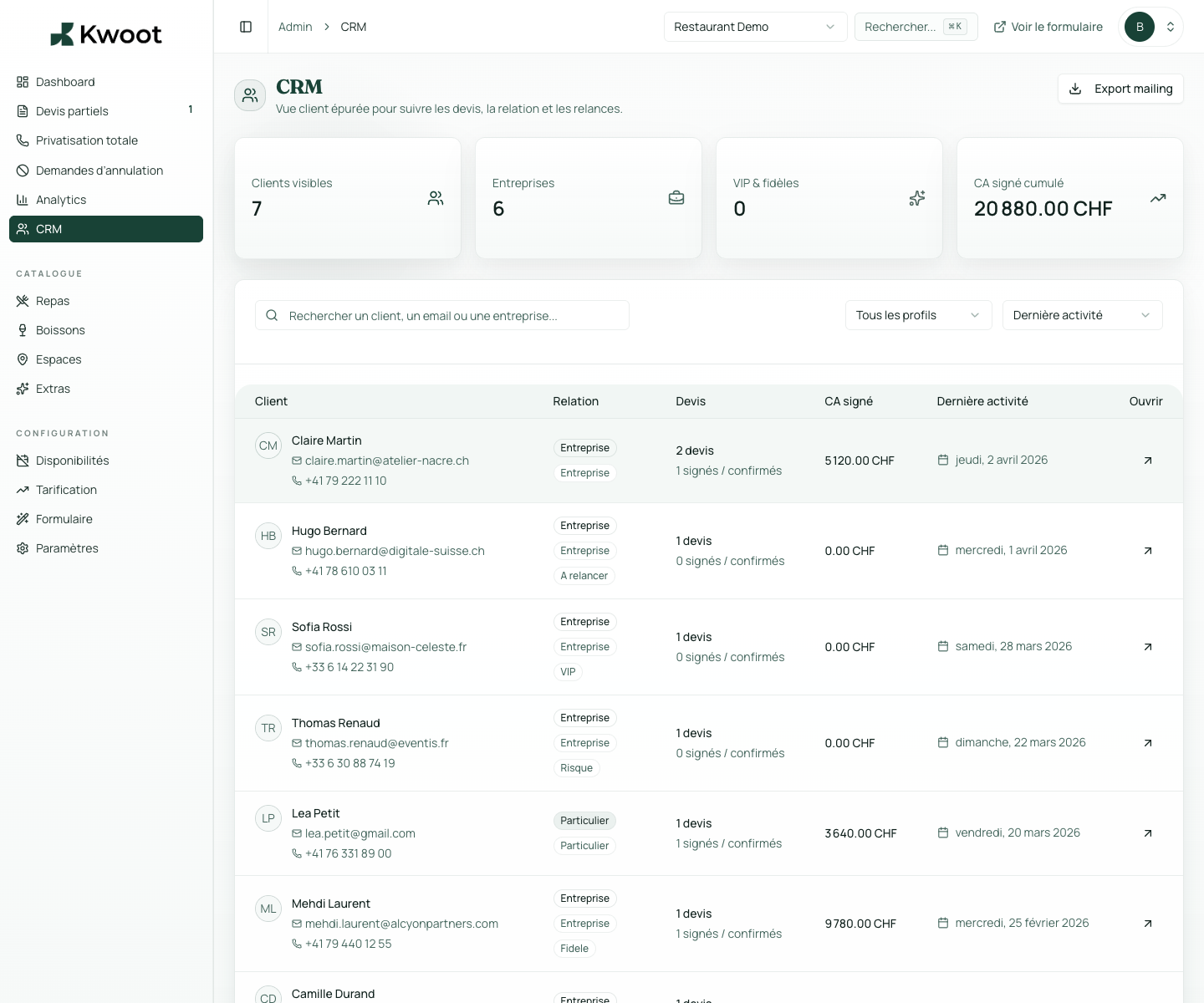
This tutorial shows you where to find the setting in the Kwoot admin, what to modify and where to control the result on the team side or on the client side.
Before you begin, keep your establishment's actual information on hand: offer, commercial rules, conditions, customer texts or visual elements depending on the setting concerned.
Configuration steps
- Open Admin > Customers.
- Check that the requests create their own records.
- Use notes and history to keep track of important information.
- Correct customer data before sending a new quote.
Captures to follow
The screenshots below show the setting in the admin, then the places where the change may appear in the form, quote, customer portal or internal tracking.
Save, reload the public form or folder, and create a quick test. If the text, price or document is unclear to a customer, correct it before going live.
Continue setup
The client portal is the page that the client consults to follow their file, sign, find documents and verify payments.
Open → Following Customize your tracking routineThe dashboard and key figures cannot be adjusted like a logo, but they must become your routine: what to raise, what to sign, what to cash out.
Open →