
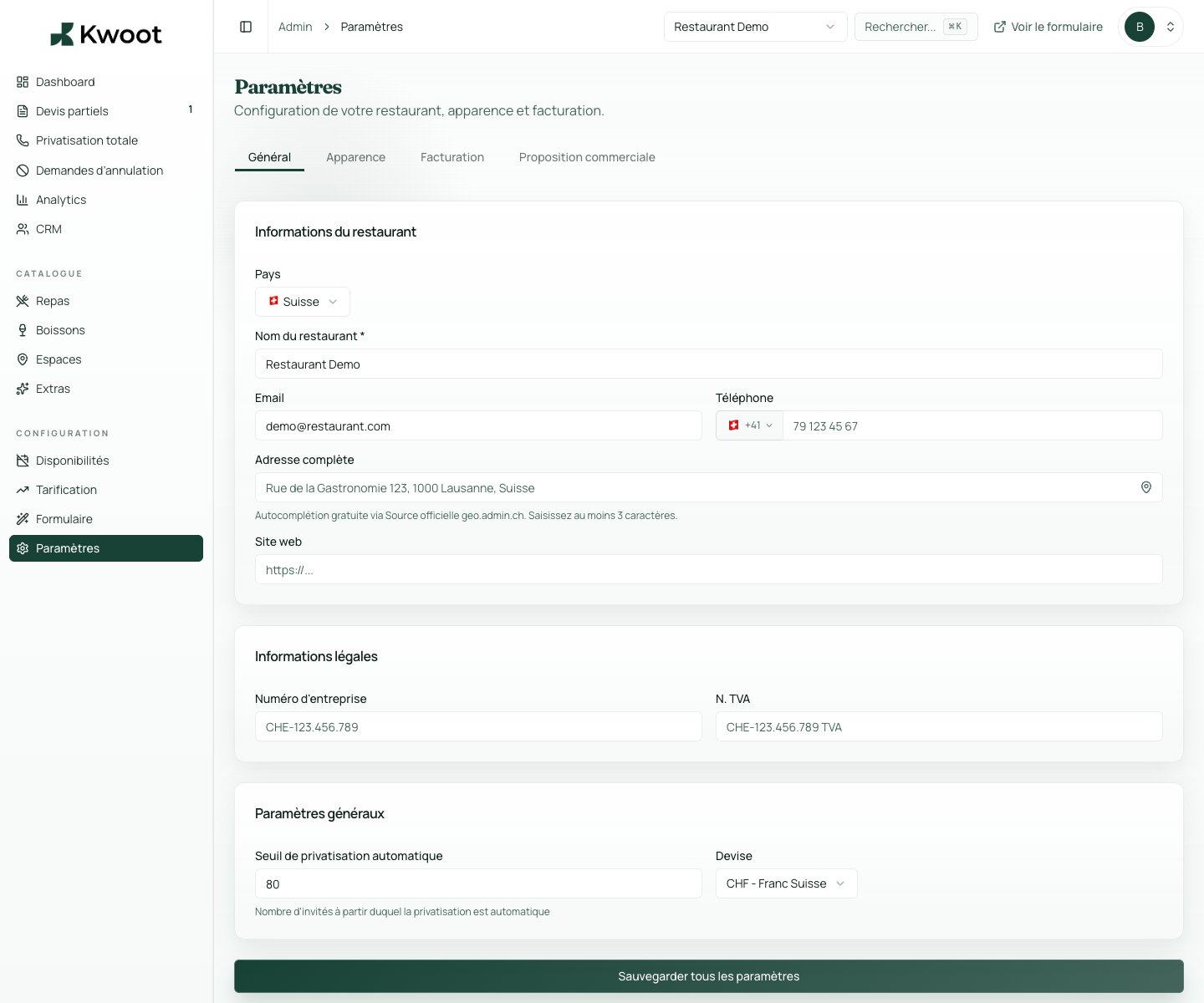
This tutorial shows you where to find the setting in the Kwoot admin, what to modify and where to control the result on the team side or on the client side.
Before you begin, keep your establishment's actual information on hand: offer, commercial rules, conditions, customer texts or visual elements depending on the setting concerned.
Configuration steps
- In Settings > Billing, open the Invoices & Deposit block.
- Choose the invoice prefix, for example FACT or KW.
- Indicate the percentage of deposit requested upon signing.
- Set the balance period and the cancellation deadline visible on the customer side.
Captures to follow
The screenshots below show the setting in the admin, then the places where the change may appear in the form, quote, customer portal or internal tracking.
Save, reload the public form or folder, and create a quick test. If the text, price or document is unclear to a customer, correct it before going live.
Continue setup
Bank details are used for deposits, balances and invoices. They must be easy to read to avoid poorly referenced payments.
Open → Following Configure VAT, taxes and service chargesTax rates change the calculation of menus, drinks and extras. They must be validated with your accountant before launch.
Open →