
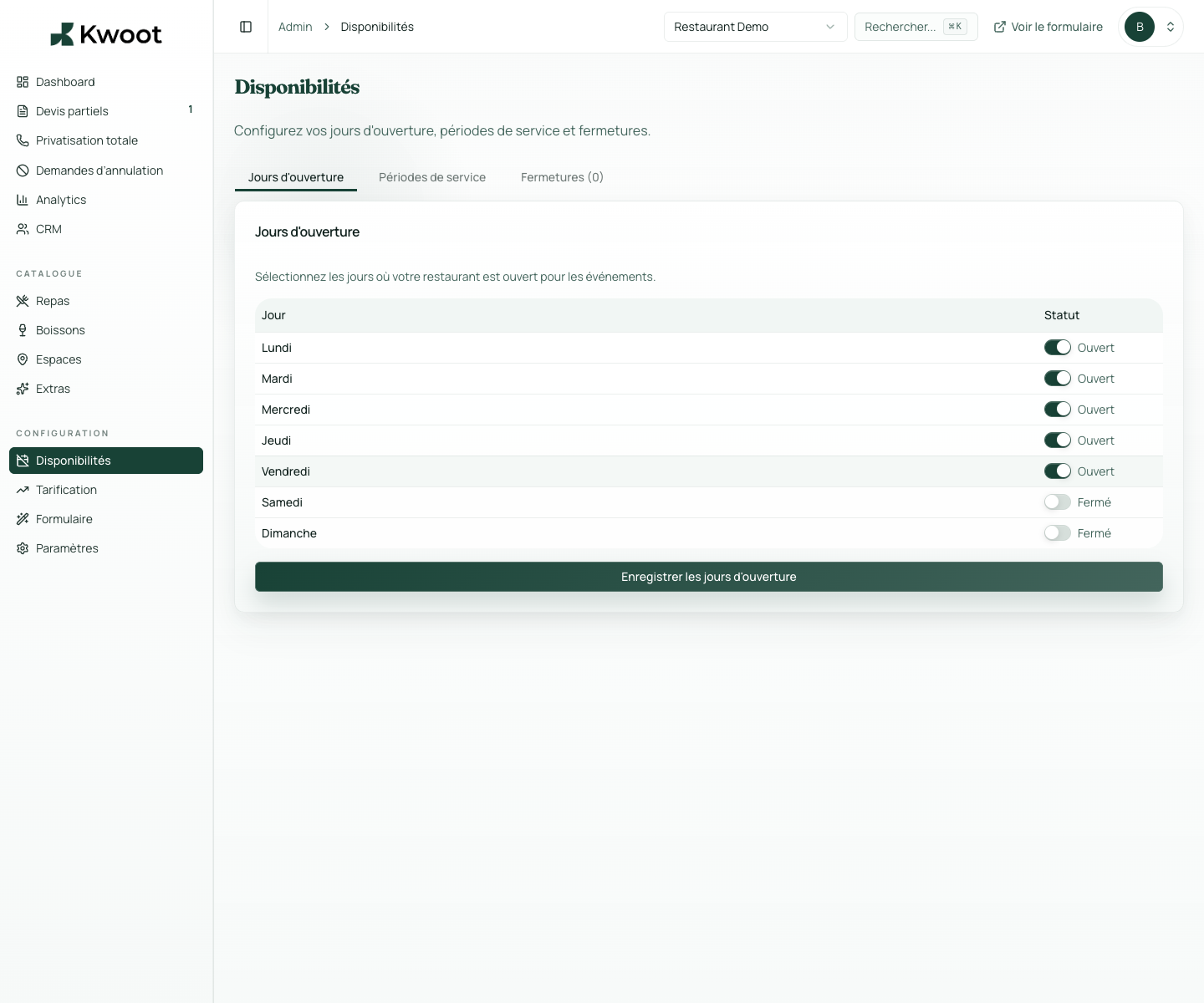
This tutorial shows you where to find the setting in the Kwoot admin, what to modify and where to control the result on the team side or on the client side.
Before you begin, keep your establishment's actual information on hand: offer, commercial rules, conditions, customer texts or visual elements depending on the setting concerned.
Configuration steps
- In Admin > Availability, click Add Closure.
- Enter a start date, an end date and an internal reason.
- Check that the period is no longer offered in the form.
- Update the closure as soon as a date becomes available again.
Captures to follow
The screenshots below show the setting in the admin, then the places where the change may appear in the form, quote, customer portal or internal tracking.
Save, reload the public form or folder, and create a quick test. If the text, price or document is unclear to a customer, correct it before going live.
Continue setup
Availability helps the client choose a realistic date and prevents the team from dealing with impossible requests.
Open → Following Create a price rule per day or periodDynamic pricing allows you to increase the price during the most popular times: Friday evening, Saturday, December, brunch, high season.
Open →