
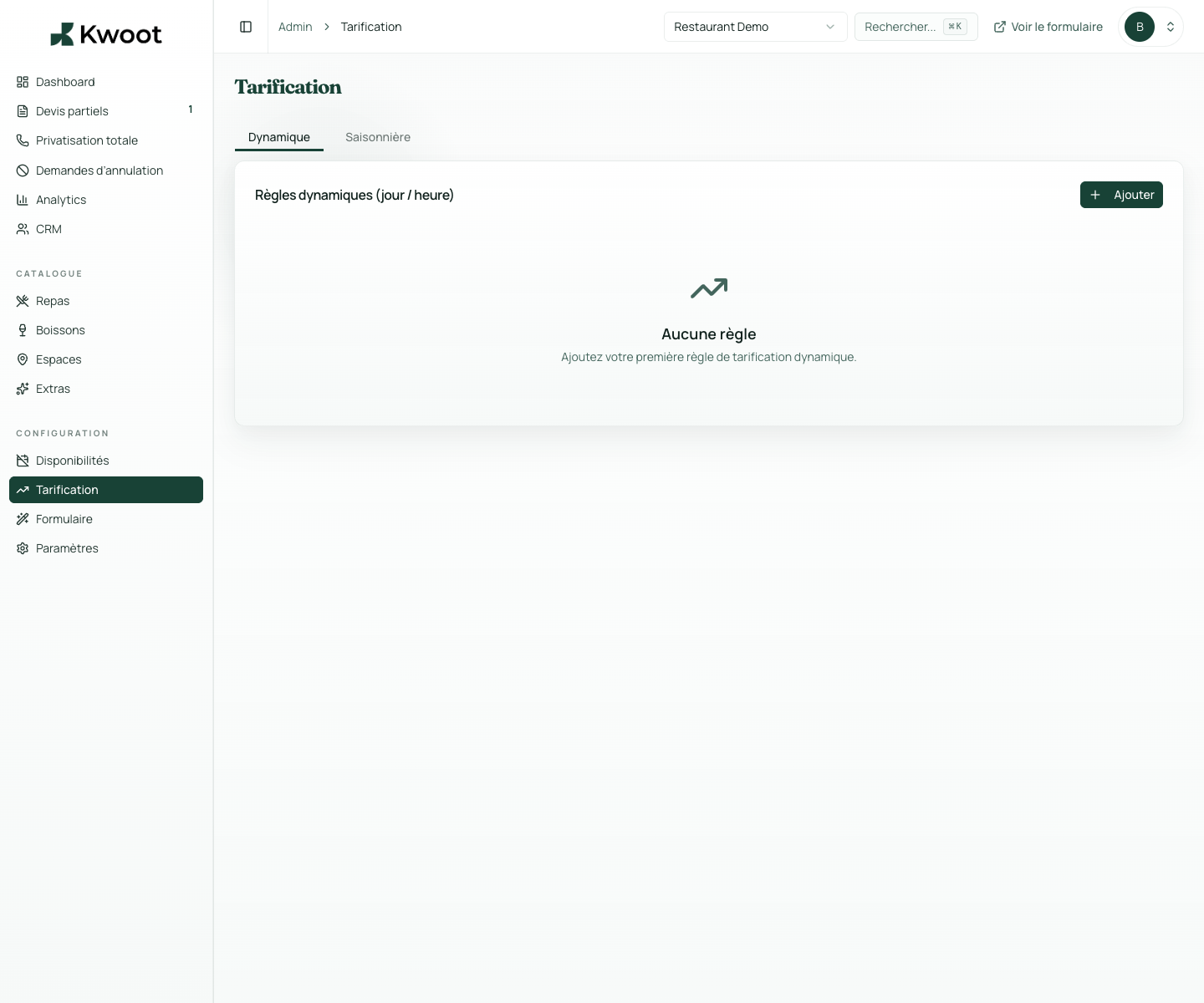
This tutorial shows you where to find the setting in the Kwoot admin, what to modify and where to control the result on the team side or on the client side.
Before you begin, keep your establishment's actual information on hand: offer, commercial rules, conditions, customer texts or visual elements depending on the setting concerned.
Configuration steps
- Open Admin > Pricing.
- Create a dynamic rule with day, period and percentage increase.
- Enable the rule only if it should apply immediately.
- Test a quote for the period concerned to validate the calculation.
Captures to follow
The screenshots below show the setting in the admin, then the places where the change may appear in the form, quote, customer portal or internal tracking.
Save, reload the public form or folder, and create a quick test. If the text, price or document is unclear to a customer, correct it before going live.
Continue setup
Closures avoid requests on blocked dates: holidays, work, internal events, private event already signed or seasonal closure.
Open → Following Create a seasonal ruleA seasonal rule covers an entire period: end-of-year celebrations, trade fairs, high tourist season or months of high demand.
Open →