
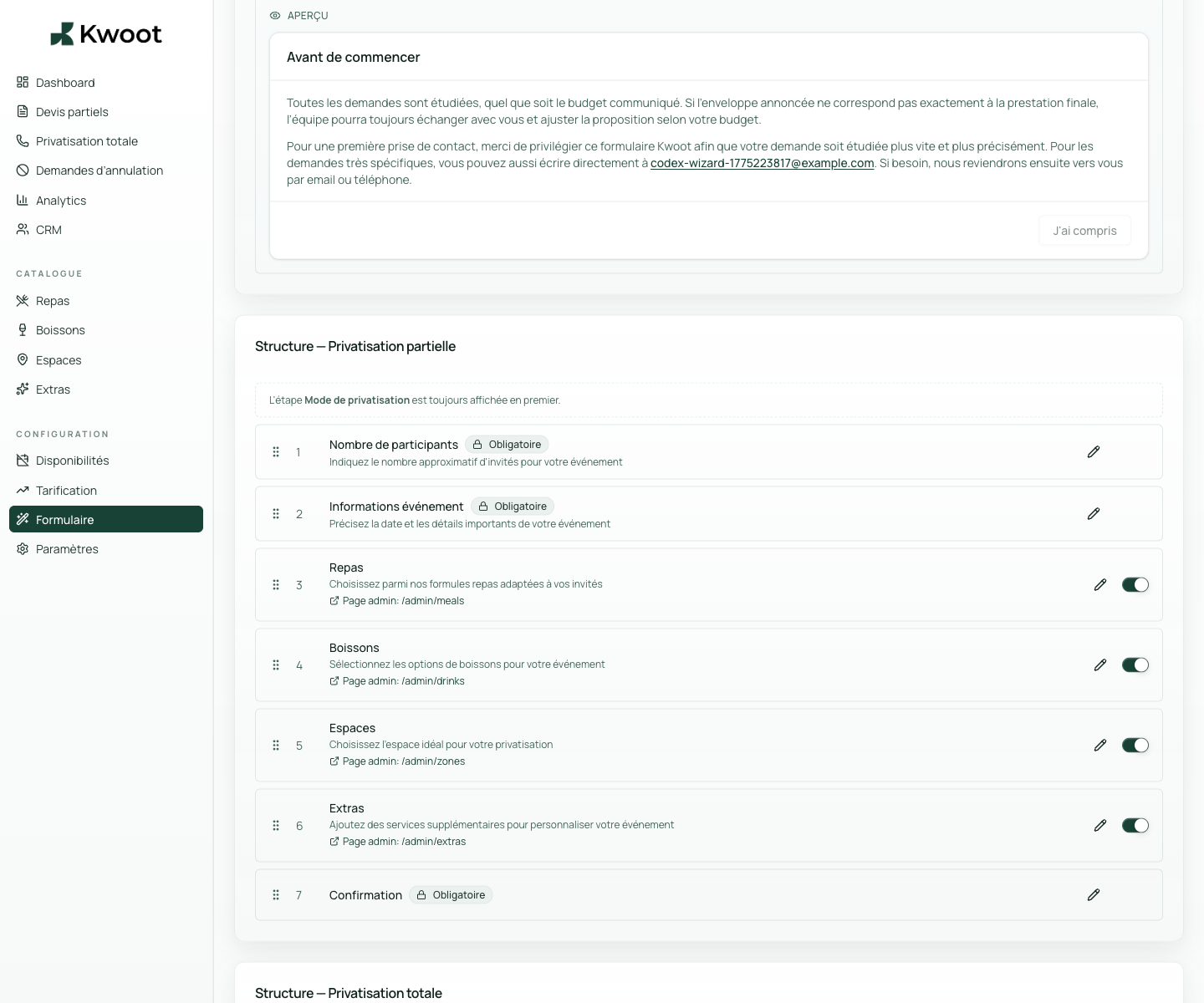
This tutorial shows you where to find the setting in the Kwoot admin, what to modify and where to control the result on the team side or on the client side.
Before you begin, keep your establishment's actual information on hand: offer, commercial rules, conditions, customer texts or visual elements depending on the setting concerned.
Configuration steps
- Open Form > Integration.
- Copy the direct link for your emails, QR codes or campaigns.
- Copy the widget script if you want to display the form on your site.
- Test the integration on desktop and mobile before publication.
Captures to follow
The screenshots below show the setting in the admin, then the places where the change may appear in the form, quote, customer portal or internal tracking.
Save, reload the public form or folder, and create a quick test. If the text, price or document is unclear to a customer, correct it before going live.
Continue setup
Birthday, seminar, cocktail, civil wedding, company dinner: these labels help the client to recognize themselves and the team to filter requests.
Open → Following Control emails sent to the client and the teamThe email tab allows you to understand what the customer receives at each stage: loan quote, deposit, balance, confirmation or internal notification.
Open →