
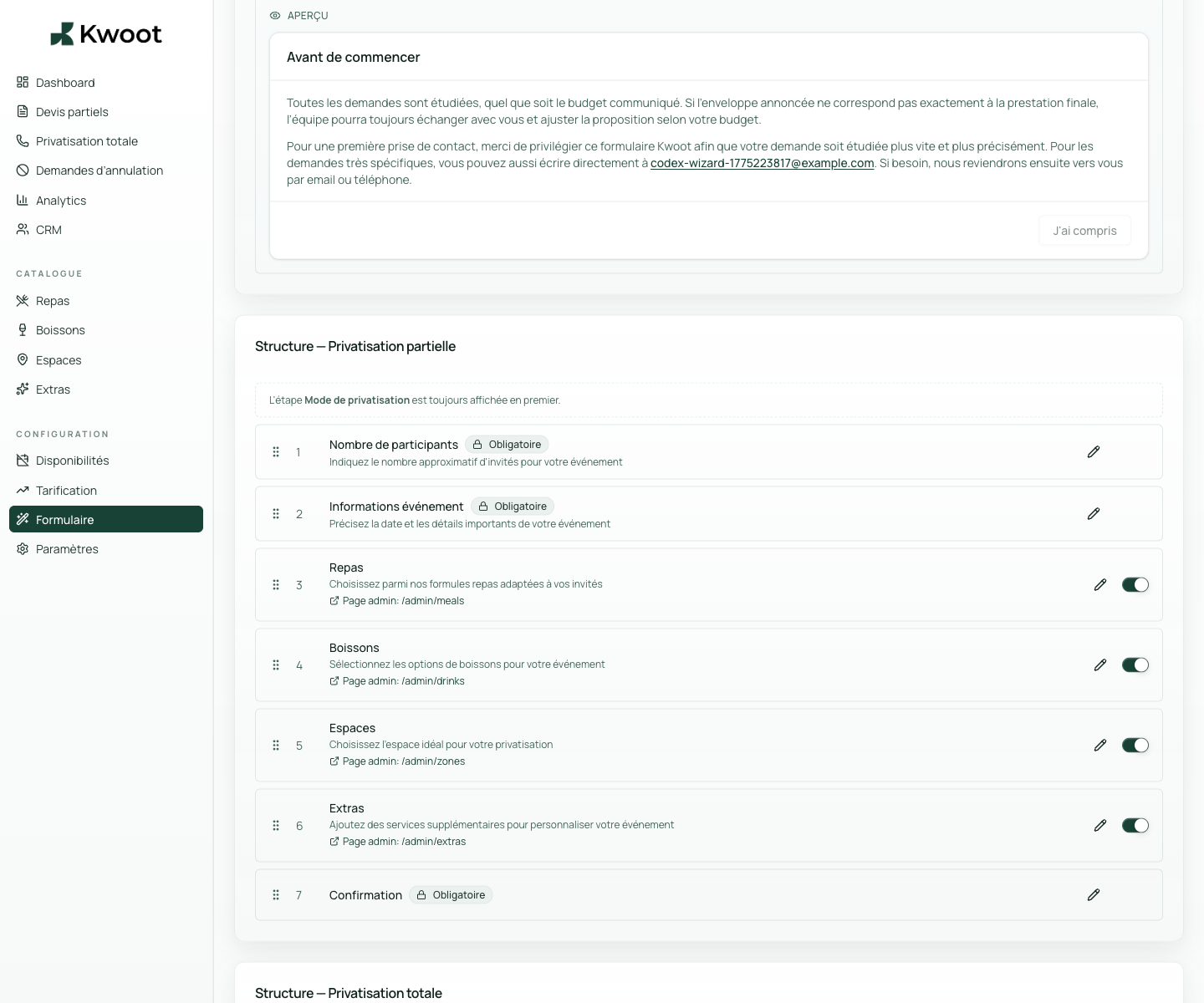
This tutorial shows you where to find the setting in the Kwoot admin, what to modify and where to control the result on the team side or on the client side.
Before you begin, keep your establishment's actual information on hand: offer, commercial rules, conditions, customer texts or visual elements depending on the setting concerned.
Configuration steps
- In Form > Steps, go to the Event Types block.
- Add simple internal code and clear client-side labeling.
- Keep the list short so as not to slow down the form.
- Check that the type also appears in requests and customer files.
Captures to follow
The screenshots below show the setting in the admin, then the places where the change may appear in the form, quote, customer portal or internal tracking.
Save, reload the public form or folder, and create a quick test. If the text, price or document is unclear to a customer, correct it before going live.
Continue setup
When the customer exceeds your threshold, Kwoot can directly request the essential information for a complete private event, without too long a journey.
Open → Following Share the direct link or embed the widget on your siteThe form can be sent by direct link or integrated into your site. This is what makes it possible to replace a simple “contact us” button.
Open →