
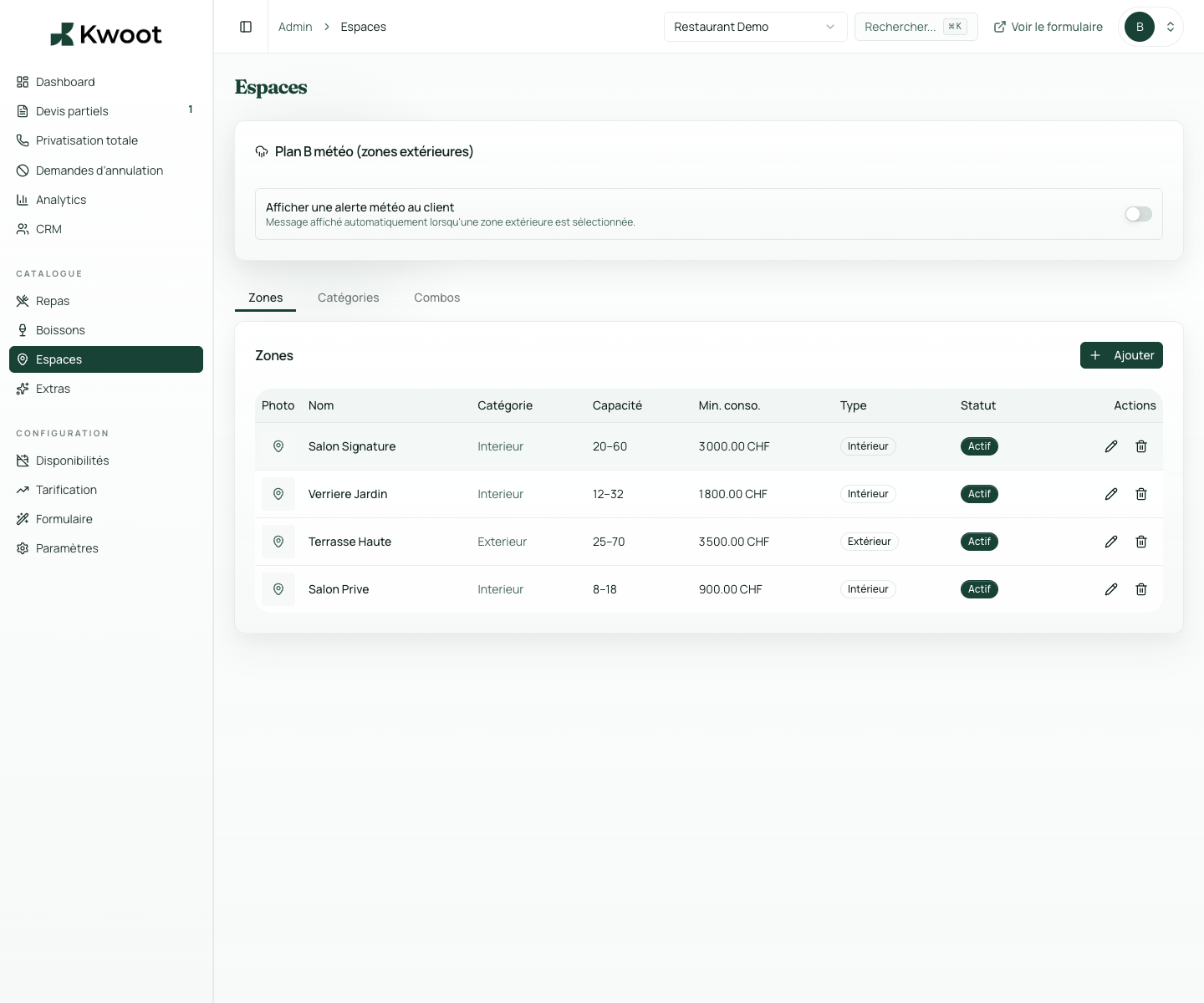
This tutorial shows you where to find the setting in the Kwoot admin, what to modify and where to control the result on the team side or on the client side.
Before you begin, keep your establishment's actual information on hand: offer, commercial rules, conditions, customer texts or visual elements depending on the setting concerned.
Configuration steps
- In Admin > Spaces, edit a zone.
- Enter the minimum consumption associated with this space.
- Use a value consistent with capacity, day, and event format.
- Check in the quote that the minimum is clearly visible or taken into account.
Captures to follow
The screenshots below show the setting in the admin, then the places where the change may appear in the form, quote, customer portal or internal tracking.
Save, reload the public form or folder, and create a quick test. If the text, price or document is unclear to a customer, correct it before going live.
Continue setup
Each zone must correspond to a real salable space: entire room, private lounge, terrace, bar, floor or combination of rooms.
Open → Following Create zone combosCombos allow several spaces to be sold together: room + terrace, lounge + bar, full floor or larger partial private event.
Open →