
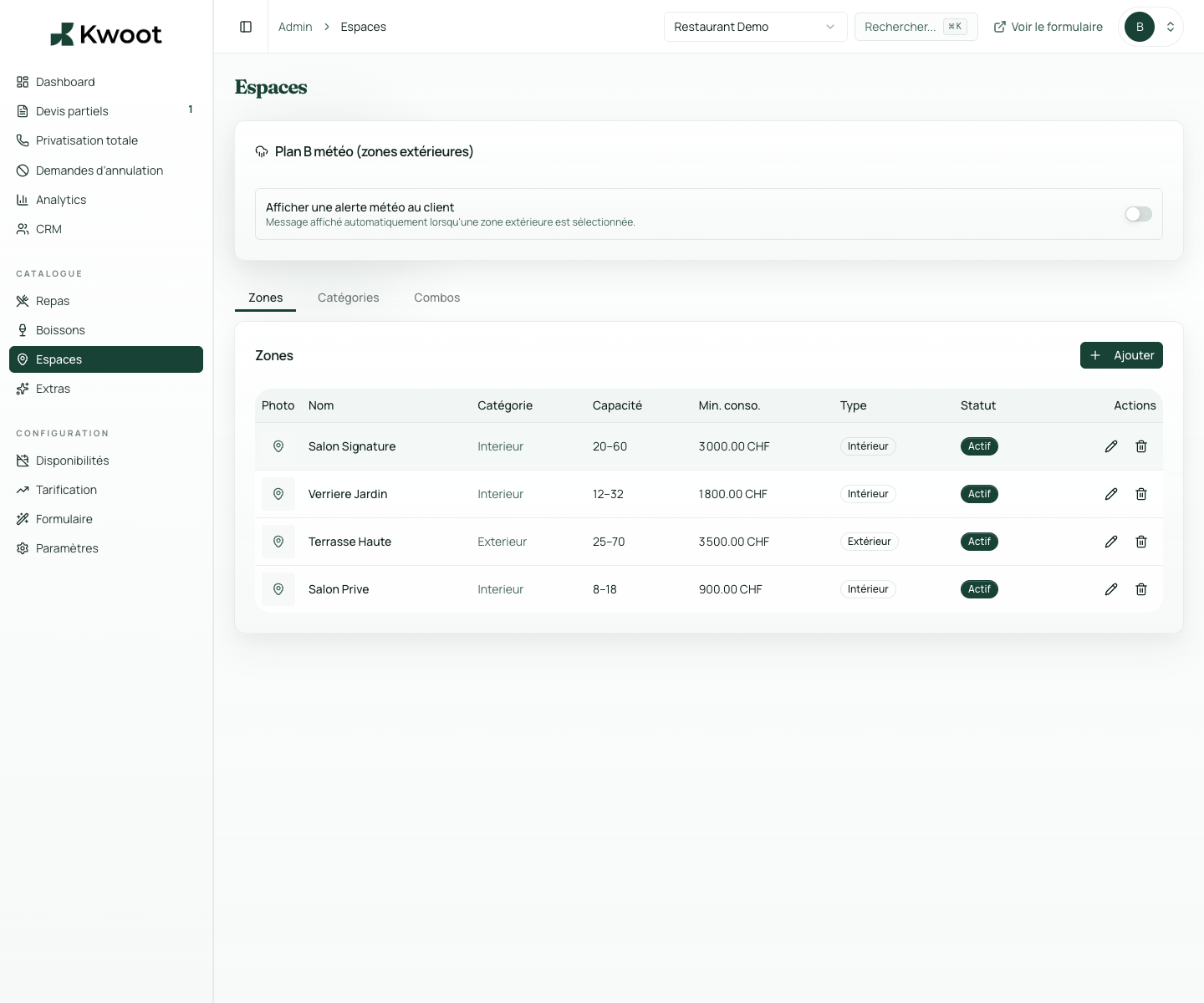
This tutorial shows you where to find the setting in the Kwoot admin, what to modify and where to control the result on the team side or on the client side.
Before you begin, keep your establishment's actual information on hand: offer, commercial rules, conditions, customer texts or visual elements depending on the setting concerned.
Configuration steps
- In Admin > Spaces, edit an exterior zone.
- Activate the weather alert for this area.
- Write a clear message and add available fallback options.
- Check that the team knows what to offer the customer in case of rain.
Captures to follow
The screenshots below show the setting in the admin, then the places where the change may appear in the form, quote, customer portal or internal tracking.
Save, reload the public form or folder, and create a quick test. If the text, price or document is unclear to a customer, correct it before going live.
Continue setup
Combos allow several spaces to be sold together: room + terrace, lounge + bar, full floor or larger partial private event.
Open → Following Define available times and periodsAvailability helps the client choose a realistic date and prevents the team from dealing with impossible requests.
Open →