
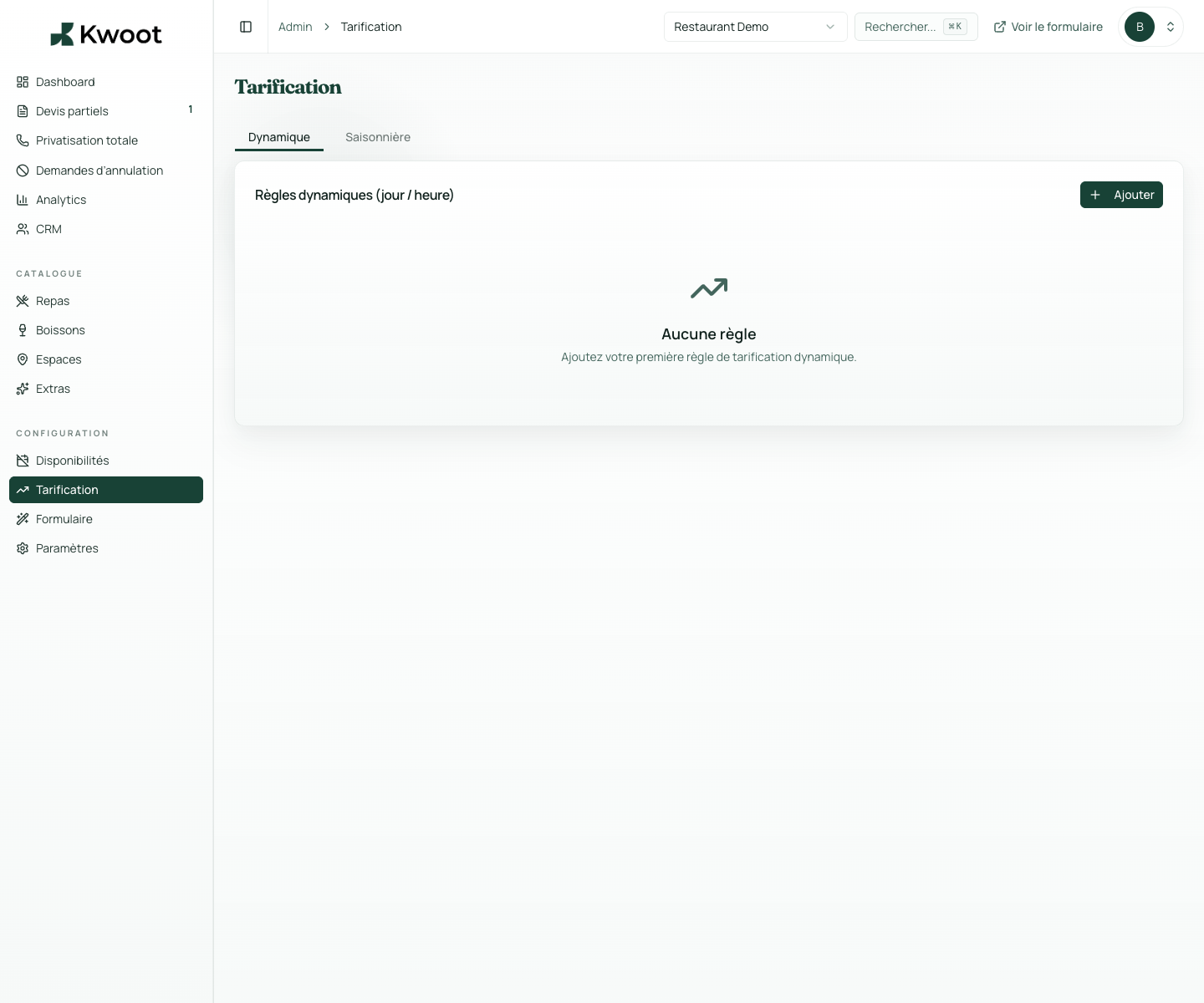
This tutorial shows you where to find the setting in the Kwoot admin, what to modify and where to control the result on the team side or on the client side.
Before you begin, keep your establishment's actual information on hand: offer, commercial rules, conditions, customer texts or visual elements depending on the setting concerned.
Configuration steps
- In Admin > Pricing, add a seasonal rule.
- Give a readable name, for example High season December.
- Choose the start and end dates, then the percentage.
- Keep rules inactive until you want to enforce them.
Captures to follow
The screenshots below show the setting in the admin, then the places where the change may appear in the form, quote, customer portal or internal tracking.
Save, reload the public form or folder, and create a quick test. If the text, price or document is unclear to a customer, correct it before going live.
Continue setup
Dynamic pricing allows you to increase the price during the most popular times: Friday evening, Saturday, December, brunch, high season.
Open → Following Check quotes, documents and statusesAfter personalization, quotes must remain simple to follow: draft, sent, signed, deposit expected, paid or archived.
Open →